Stitch
At a glance
- What the view shows: align and merge two scans of the same subject into one volume when the region of interest spans both.
- Start: with the base volume open as A, pick B from the same-patient candidates, keep the Color overlay, run Auto align, refine with the sliders until the colored fringes are gone, then Bake and load.
- Three gestures: the wheel over any preview steps the compared slice; drag a slider to nudge one axis; double-click a slider to zero it. The Keys card lists every gesture of the mode.
- Leave it for: anything that is not a rigid difference between two scans of one subject: distortion, growth, or a different acquisition geometry cannot be corrected here.
What this mode is for
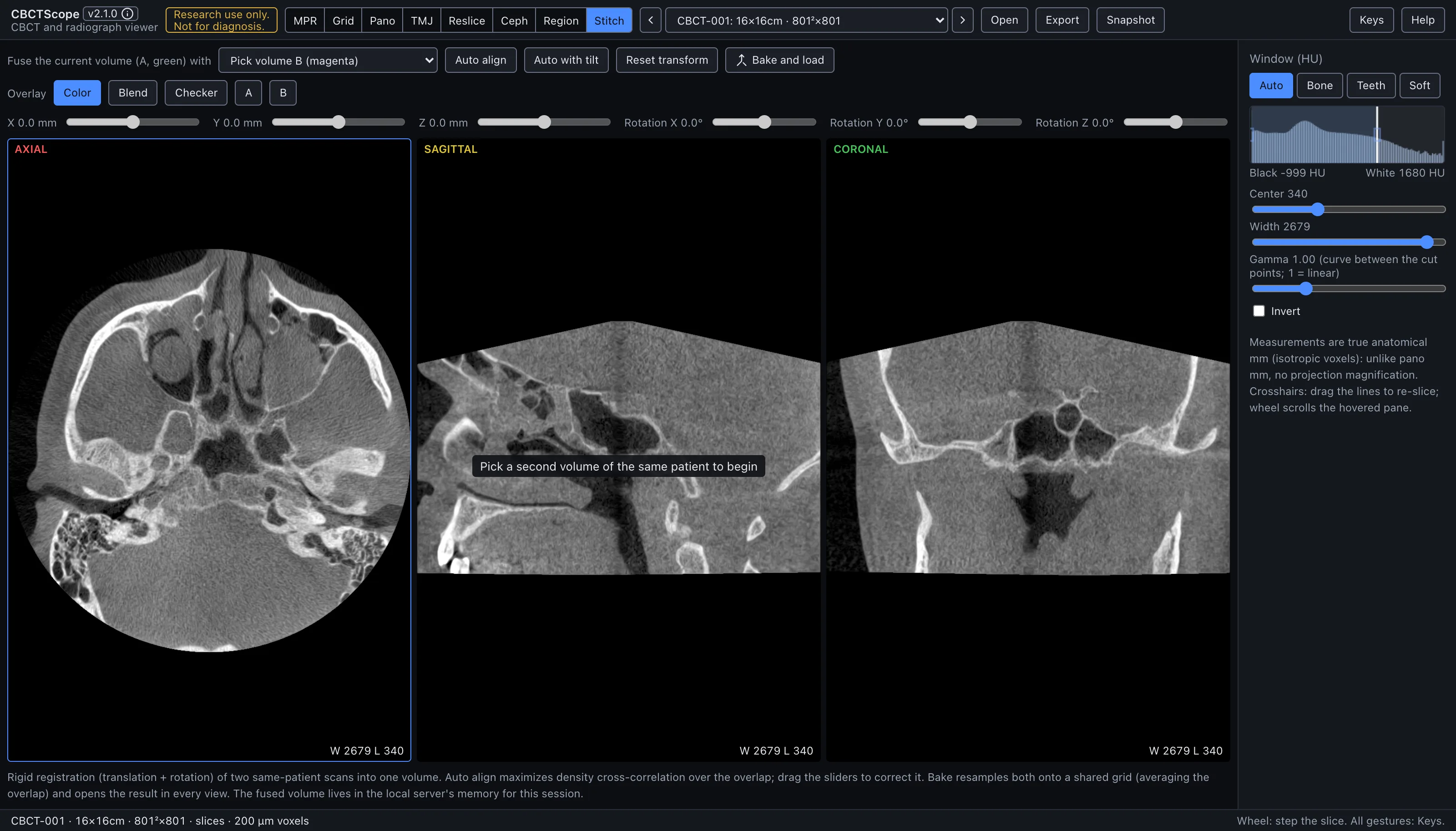
Stitch rigidly registers two CBCT volumes of the same subject and fuses them into one larger volume that then reads in every mode. It answers the coverage question: when a region of interest spans two acquisitions, or two scans of the same patient need to be read in one frame, this aligns them and merges them into a single volume. The current volume is A; you pick B from the catalog.
Gestures
| Gesture | Where | Action |
|---|---|---|
| Wheel | any preview pane | Step the compared slice, so alignment can be verified away from the three center slices |
| Drag a slider | toolbar above the previews | Nudge that axis of the transform |
| Double-click a slider | toolbar | Zero that axis |
The controls
| Control | Options or range | What it does |
|---|---|---|
| Panes | axial, sagittal, coronal | Each shows its plane top left, followed by the compared slice's offset once you step off the centre, and the window bottom right; the pane that takes the wheel carries a thin blue frame. |
| Volume picker | A (green), B (magenta) | A is the current volume; pick B (the list starts at Pick volume B (magenta)) from the same-patient candidates in the catalog. Fused volumes are excluded as inputs. |
| Auto align | button | Finds the best translation by maximizing density cross-correlation (an NCC hill-climb) over the overlap. |
| Auto with tilt | button | Also searches rotation; slower. |
| Reset transform | button | Returns B to the identity transform. |
| Manual sliders | translation X, Y, Z (-60 to 60 mm); Rotation X, Rotation Y, Rotation Z (-20 to 20 degrees) | In the toolbar above the previews; double-click a slider to zero that axis. |
| Overlay | Color, Blend, Checker, A, B | Color: A green, B magenta, so overlap reads neutral grey and misalignment shows as colored fringes; Blend: the average of the two; Checker: alternating tiles of A and B; A or B: that volume only. The selected overlay is solid blue. |
| Preview | axial, sagittal, coronal | Rendered at A's center. An Overlap NCC readout updates whenever the transform settles; higher is better, and it turns green above a threshold. |
| Bake and load | button | Resamples both volumes onto one shared grid, averaging the overlap, registers the fused volume, and switches the viewer to it in MPR. The fused volume gets a fused_ id and lives in memory for this session only: in this tab on the website, in this app in the desktop app, and in the local server process when the viewer runs from the repository. Nothing is uploaded. |
| Window | shared sidebar | The shared Window (HU) presets, center, width, and invert control the preview. |
A reading workflow
- Confirm A is the volume you want as the base, then pick B from the same patient; the picker only offers same-catalog candidates.
- Use the Color overlay from the start: perfect overlap reads neutral, and any colored fringe is misalignment you can see directly.
- Run Auto align first for the translation, then Auto with tilt if the two scans are also rotated relative to each other.
- Refine by hand with the sliders while watching both the fringes and the NCC readout; wheel over any preview steps the compared slice, so alignment can be verified away from the three center slices (misalignment at the condyles shows before you bake); nudge the axis whose fringe is largest.
- Cross-check the alignment on all three planes, not just one; a transform that looks right axially can still be off in the superior-inferior direction.
- Switch to Blend or Checker to confirm continuity of structures across the seam once the Color overlay looks aligned.
- When the fringes are minimal and the NCC is as high as it will go, press Bake and load, then read the fused volume in MPR and the other modes as usual.
- Remember the fused volume is session-only; re-derive it if you need it again later.
Over MCP
open_scan, list_volumes, select_volume, set_view_mode (mode stitch),
set_window_level, and snapshot apply; the snapshot captures the tri-plane overlay.
Registration, the overlay mode, and bake are on-screen controls with no agent verb. Once
a fusion is baked, its fused_ volume appears in list_volumes and can be opened with
select_volume. Example sequence: set_view_mode to stitch, snapshot, then after
baking, list_volumes and select_volume on the new fused id.
Limits
Registration here is rigid only (translation and rotation): it assumes the two scans differ by a rigid body transform and cannot correct for distortion, growth, or differences in acquisition geometry between them. It is meant for two scans of the same subject; aligning unrelated volumes is meaningless. The NCC score measures overlap similarity, not anatomical correctness, and the reader's eyes on the fringes are the real check. The fused volume is held in memory (the tab's, the desktop app's, or the local server's) for the session and is not persisted. CBCTScope is navigation and visualization only: no findings, no diagnoses. Research use only; not a medical device.